Krea 3: Fast AI Photo Editing in Native 2K

Change scenes, materials, and lighting while preserving product details and character identity. Native 2K output and multi-reference editing turn one creative direction into a coherent set.

3 0/4

Krea 3

More control over the image you have in mind

Krea 3 turns visual direction into finished visuals: choose the model, shape the frame, and keep every version in one place.

01

Native 2K

Crisp, publish-ready output at up to 4K —clean edges, legible text, and detail that survives zoom.

02

Direction

Prompts are followed literally —subject, composition, palette, and mood land where you put them.

03

Consistency

Products, faces, and styles stay consistent across edits, scenes, and whole campaigns.

Introduce Krea 3

A sharper brief-to-image result

Krea 3 is an AI image model built for iterative visual work. Give it a clear brief, a product photo, or a few references —it returns visuals you can actually ship.
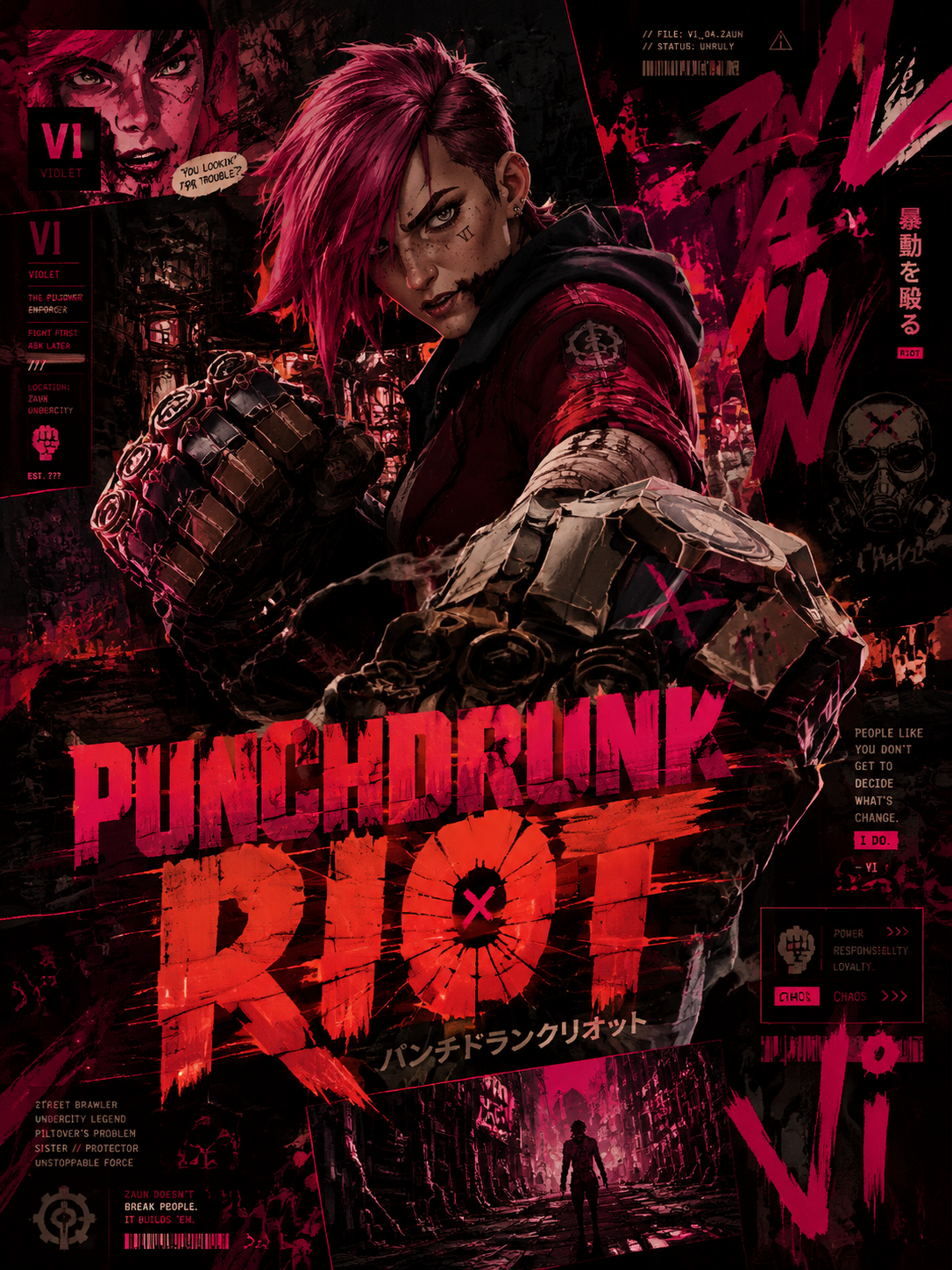
Krea 3 image generation studio preview
01

Brief-ready prompts

Describe the visual instead of tweaking parameters —Krea 3 parses subject, composition, and intent from natural language.

02

Image-to-image editing

Start from a photo: swap the background, recolor the outfit, relight the scene —while the product stays intact.

03

Multi-reference direction

Supply up to four references —Krea 3 holds identity, materials, and look across the whole set.

04

Native 2K output

Render at 1K for drafts, 2K for production, and 4K for print-quality finals.

05

Legible text

Labels, posters, and signage come out readable —brief words render cleanly in frame.

06

Fast turnaround

Most edits return in seconds —iterate on the direction, not on the queue.

Krea 3 workflow

Keep what matters. Change what moves the story.

Krea 3 treats every visual as a version you can refine —not a render you have to accept.
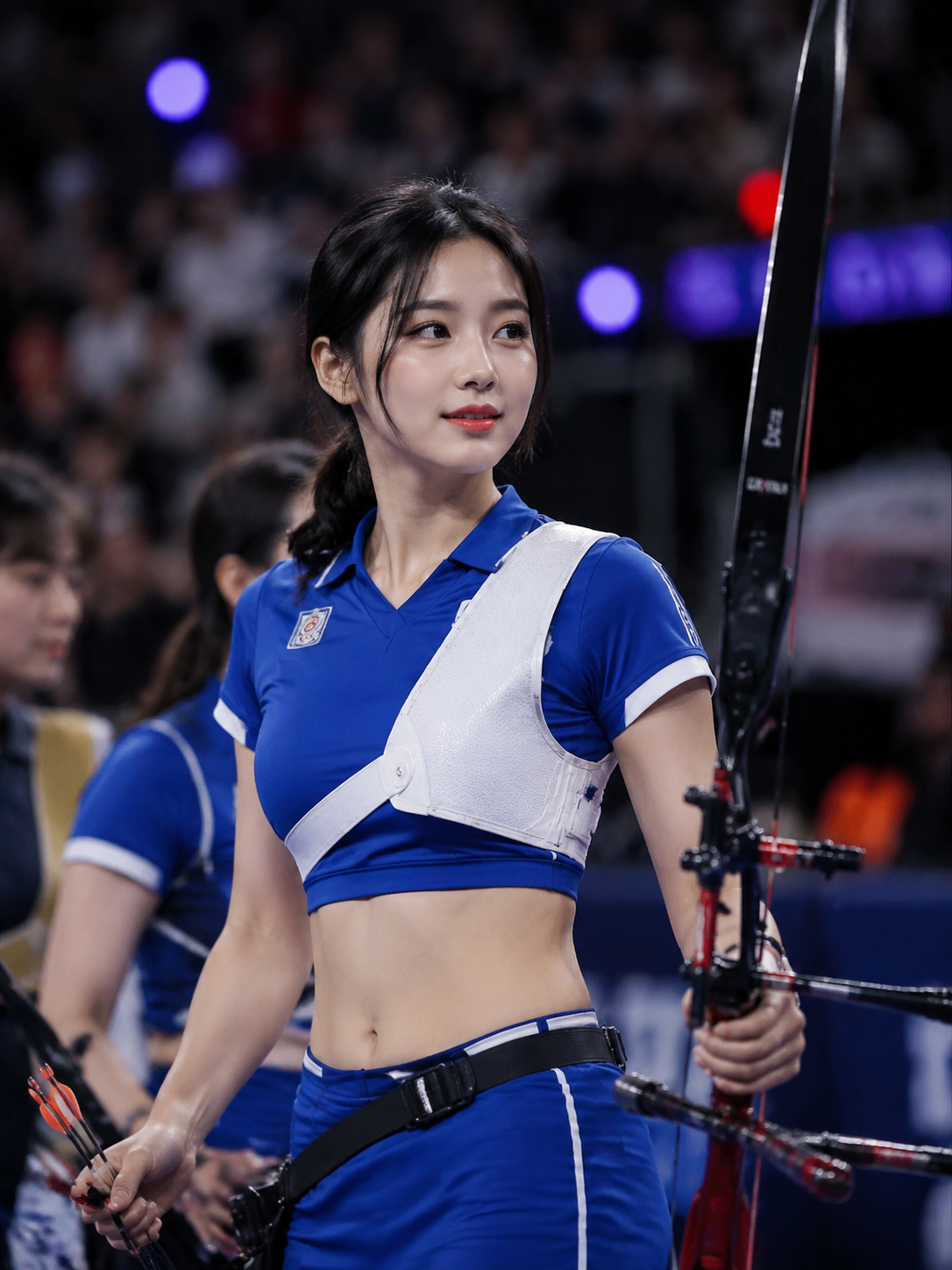
Composing an image brief in Krea 3

Compose

Describe the visual you want

Write the subject, setting, and mood. Add references when a product, face, or style has to stay recognizable.
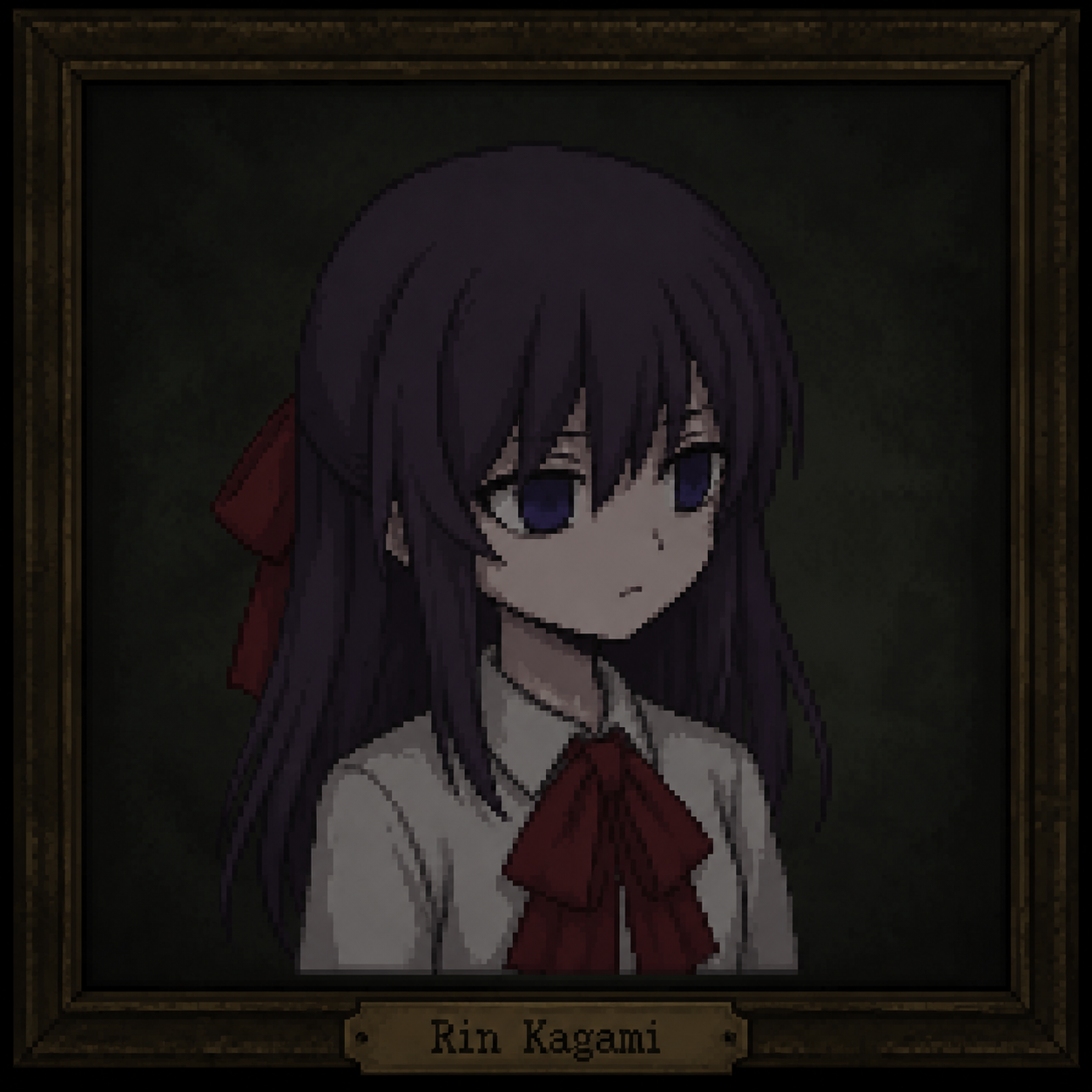
Directing an edit in Krea 3

Direct

Name what changes

Pick aspect and resolution. Say what stays —the label, the silhouette —and what moves: background, materials, light.
Refining a generated image in Krea 3

Refine

Adjust the version

Ask for a different palette, a tighter crop, or a new scene —Krea 3 revises the visual without resetting it.

Build a clear creative brief

A practical way to start with Krea 3

Make the important choices explicit, review the result against your brief, and use your preferred version as the basis for the next one.

01

State the purpose

Describe what the visual should communicate and where it will run. A product page, a campaign banner, and a storyboard need different framing and density.

02

Assign each reference a role

Explain which image defines the product or character and which supplies the style. For editing, pick the photo that anchors the change.

03

Choose framing and size

Select the aspect and resolution for the placement. Name the focal point and any details the render must preserve.

04

Review, refine, and save

Check faces, labels, materials, and text across the render. Refine the version, then download the one that fits your layout.

From a creative brief to a usable visual

Where Krea 3 can help

Choose a task with a clear visual objective. Krea 3 gives creators, studios, marketers, and product teams more ways to explore it.

01

Product photos in new settings

Explore studio, lifestyle, and seasonal scenes from a product reference while the shape, materials, and labels stay true.

02

Character and storyboard concepts

Carry a recognizable character through new poses and settings, then review identity and scene continuity frame by frame.

03

Campaign and social graphics

Create coordinated visuals with consistent products, colors, and direction across square, portrait, and landscape formats.

04

Poster and packaging concepts

Generate layout-led visuals with intended text areas and product hierarchy —check every word before publishing.

05

Background, outfit, and lighting edits

Replace an object, recolor an outfit, restyle a room, or relight a scene with one focused instruction.

06

Graphics for different markets

Develop regional variations from one approved direction and adjust visible copy for each market.

Useful answers before you create

Krea 3 FAQ

Understand the model, prepare better references, and choose a practical approach to your next visual.

01What is Krea 3?
Krea 3 is an AI image model for creating and editing visuals. It combines text instructions with references to change scenes, materials, and lighting while maintaining product and character consistency, with native 2K output.
02Can I change a background while keeping the product?
Upload a clear product photo and describe the new scene. Specify the packaging, label, colors, and camera angle to keep. Review the result closely —small text and details can change during generation.
03How fast is Krea 3?
Most edits return in seconds at native 2K. Timing varies with the request, settings, and service load —it is a typical result, not a deadline for every edit.
04How do I create from a prompt or edit a photo?
Choose Text to Image to create from a prompt, or Image to Image for a photo edit. Enter a prompt, upload references if needed, select output settings, and check the credit cost before you generate.
05How do I write a good Krea 3 prompt?
Start with what must stay —a face, a label, a room layout —then describe the change, including lighting and camera angle. Give each reference a clear role and use "only" for a focused edit.
06Can Krea 3 edit a photo I already have?
Yes. Choose Image to Image, upload your photo, and describe the change —for example: replace the background with a sunlit studio while keeping the product, label, and camera angle unchanged.
07What resolution can I export?
1K for quick drafts, native 2K for most production work, and 4K for print-quality output —the credit estimate updates before each run.
08What about video?
The same studio hosts the Seedance video family —turn a finished composition into motion in the video generator with its own duration, resolution, and credit settings.
09What should I check before publishing?
Review faces, hands, product details, and any text in the render. Krea 3 accelerates the creative workflow, but a final review remains part of shipping a visual.
10How do I begin on Krea 3?
Open Create, write a brief, and add references if needed. You can prepare your prompt before signing in —sign in to generate and save your work. Review the model, settings, and credit charge before submitting, and compare plans on the pricing page.

Prezzi di Krea 3

Abbina il piano a quanto crei spesso: crediti ricorrenti per un flusso regolare o un pacchetto unico per un progetto definito.

Annulla quando vuoi

Per domande su pagamenti o piani, contatta il nostro supporto: Contatta il supporto

Paga in sicurezza con

VisaMastercardAmerican ExpressApple PayUnionPayGoogle PayStripeMore >>

Rivedi fatturazione, crediti condivisi, cancellazione e validità prima di scegliere un piano Krea 3.

Capisci il piano prima di pagare

Understand the model, prepare better references, and choose a practical approach to your next visual.

01Qual è la differenza tra abbonamento e pacchetto di crediti?
Gli abbonamenti sono pensati per la creazione continua e includono un’assegnazione ricorrente di crediti. I pacchetti sono acquisti unici senza addebito ricorrente — flessibili per progetti occasionali.
02Come funziona la fatturazione annuale?
I piani annuali mostrano il prezzo mensile equivalente per il confronto, ma l’intero importo annuale viene addebitato una volta all’anno. La tua assegnazione annuale è disponibile per il periodo del piano.
03Come funziokrea i crediti tra i modelli?
I crediti sono condivisi tra i modelli abilitati nello studio. Il costo varia per modello e impostazioni (risoluzione, riferimenti); controlla l’addebito esatto prima di inviare.
04Posso disdire in qualsiasi momento?
Sì, dalle impostazioni di fatturazione. La disdetta ferma i rinnovi futuri; il piano attuale resta disponibile fino alla fine del periodo pagato.
05Quanto durano i crediti di un pacchetto?
365 giorni dalla data di acquisto.
06Posso usare i contenuti generati commercialmente?
Sì. Piani e pacchetti a pagamento supportano progetti personali e commerciali, nel rispetto dei termini applicabili e dei tuoi diritti sul materiale caricato.
07Quante generazioni possono girare in contemporanea?
Gli account gratuiti eseguono 1 batch alla volta. Pacchetti validi e Starter ne permettono 2, Pro 4 e Premium 8. Contano i batch in attesa e in corso, sia su immagini che su video.

Paga in sicurezza con

UnionPayStripeMore >>

Make the next idea visible

Start your next visual on Krea 3

Bring a product photo, a character, or a clear scene brief. Explore a version, refine the direction, and save a visual that fits your layout.