Native 2K
Crisp, publish-ready output at up to 4K —clean edges, legible text, and detail that survives zoom.
Change scenes, materials, and lighting while preserving product details and character identity. Native 2K output and multi-reference editing turn one creative direction into a coherent set.
Krea 3
Krea 3 turns visual direction into finished visuals: choose the model, shape the frame, and keep every version in one place.
Crisp, publish-ready output at up to 4K —clean edges, legible text, and detail that survives zoom.
Prompts are followed literally —subject, composition, palette, and mood land where you put them.
Products, faces, and styles stay consistent across edits, scenes, and whole campaigns.
Introduce Krea 3
Krea 3 is an AI image model built for iterative visual work. Give it a clear brief, a product photo, or a few references —it returns visuals you can actually ship.
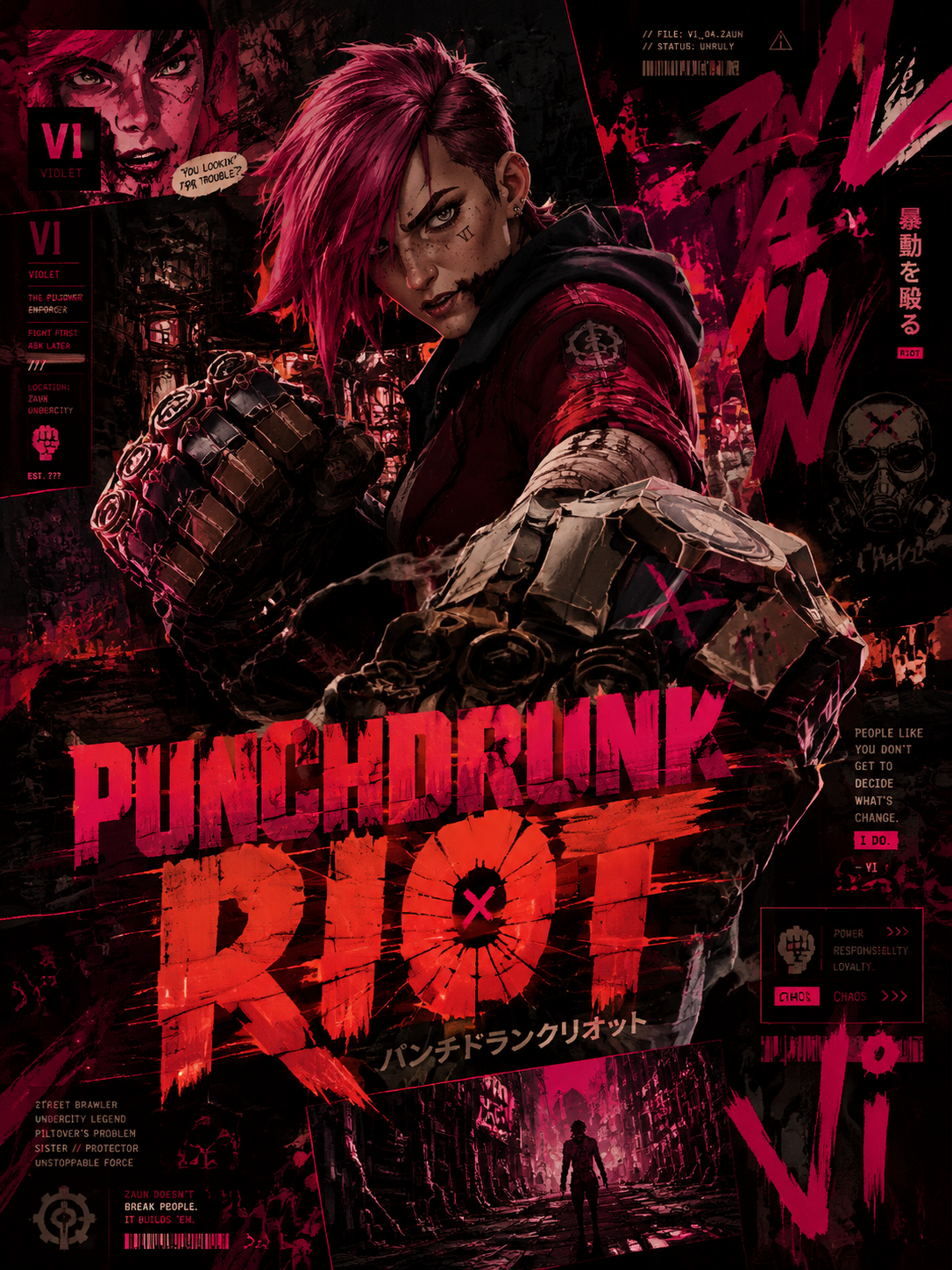
Describe the visual instead of tweaking parameters —Krea 3 parses subject, composition, and intent from natural language.
Start from a photo: swap the background, recolor the outfit, relight the scene —while the product stays intact.
Supply up to four references —Krea 3 holds identity, materials, and look across the whole set.
Render at 1K for drafts, 2K for production, and 4K for print-quality finals.
Labels, posters, and signage come out readable —brief words render cleanly in frame.
Most edits return in seconds —iterate on the direction, not on the queue.
Krea 3 workflow
Krea 3 treats every visual as a version you can refine —not a render you have to accept.
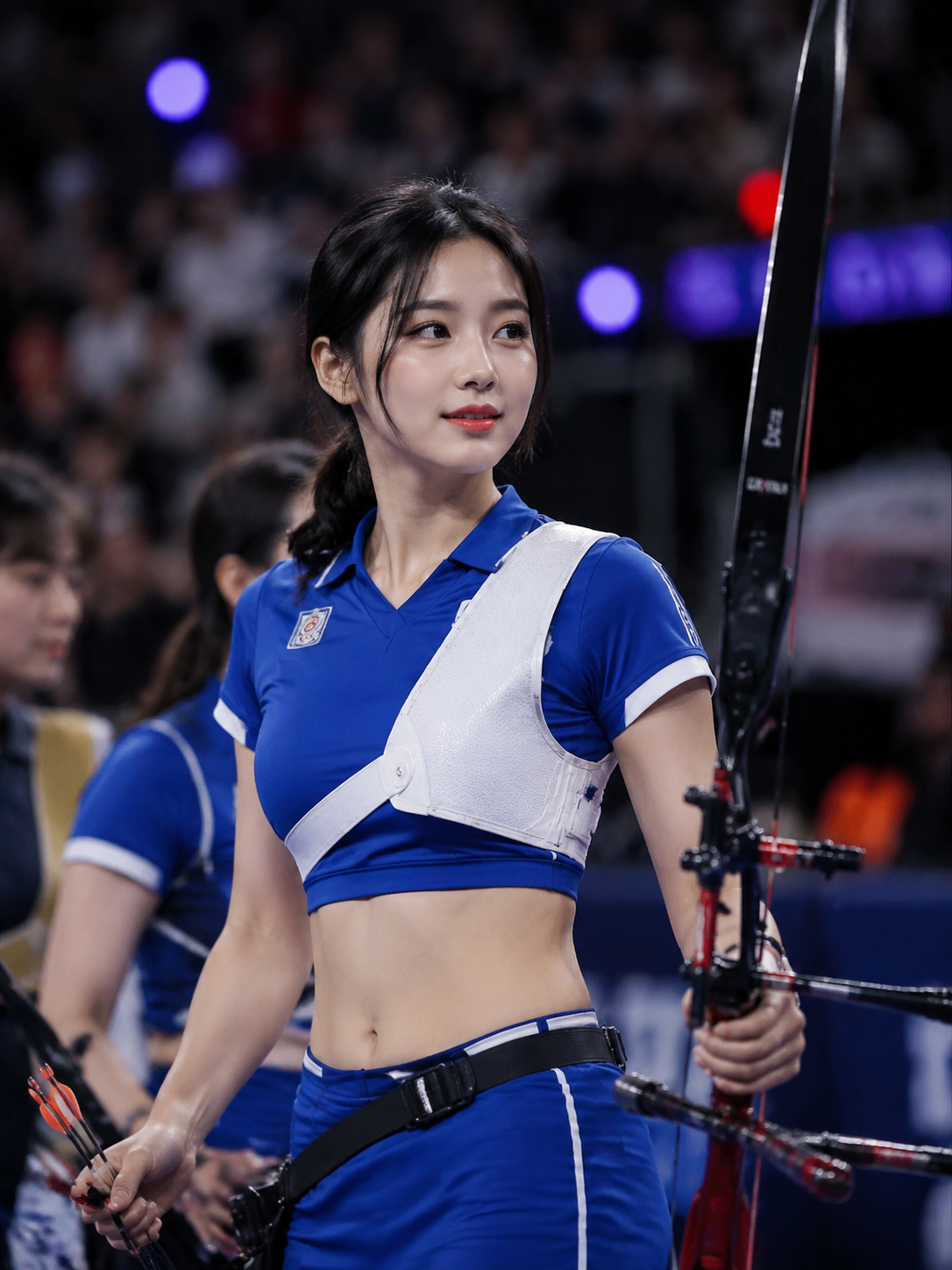
Compose
Write the subject, setting, and mood. Add references when a product, face, or style has to stay recognizable.

Direct
Pick aspect and resolution. Say what stays —the label, the silhouette —and what moves: background, materials, light.
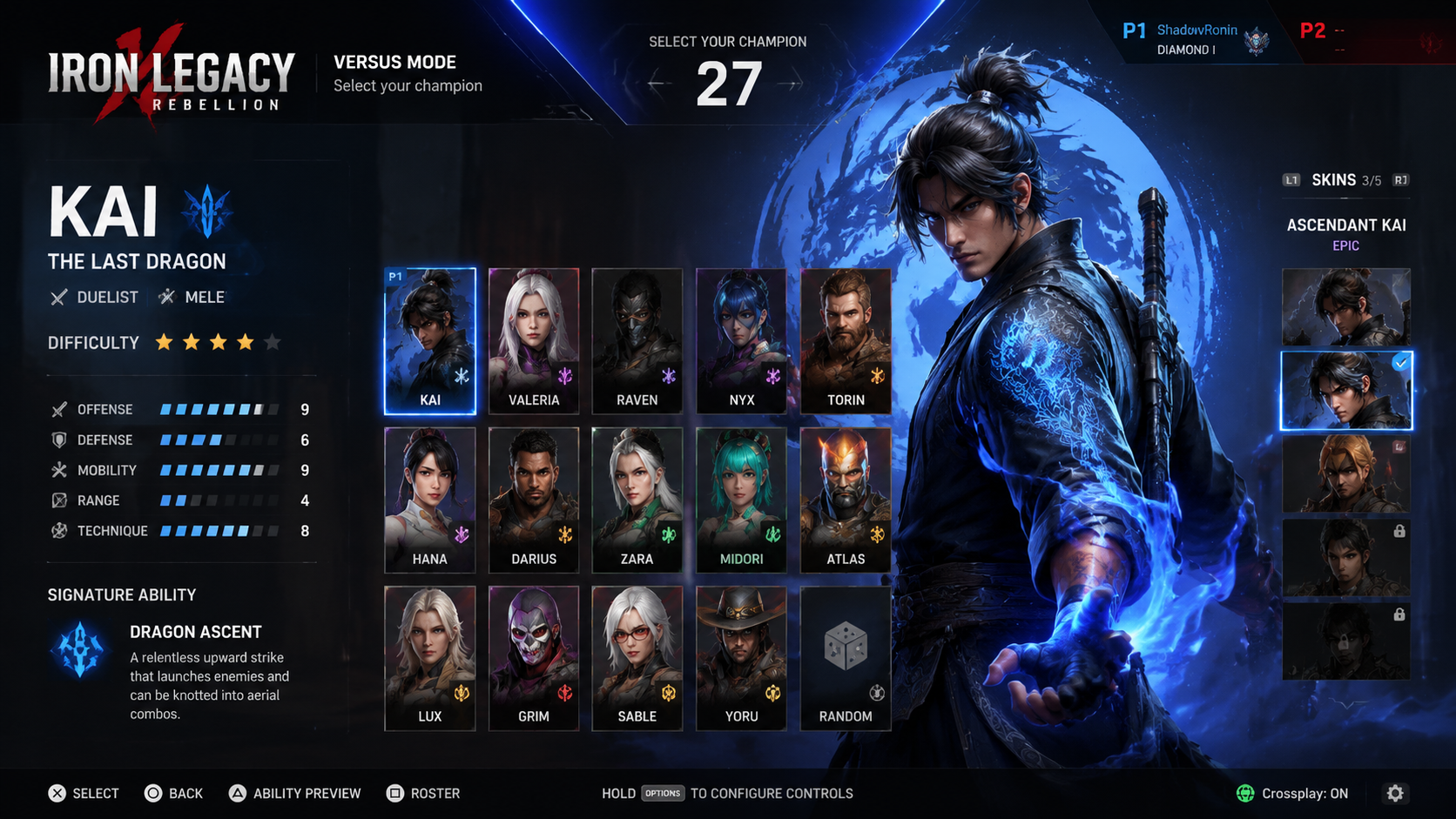
Refine
Ask for a different palette, a tighter crop, or a new scene —Krea 3 revises the visual without resetting it.
Build a clear creative brief
Make the important choices explicit, review the result against your brief, and use your preferred version as the basis for the next one.
Describe what the visual should communicate and where it will run. A product page, a campaign banner, and a storyboard need different framing and density.
Explain which image defines the product or character and which supplies the style. For editing, pick the photo that anchors the change.
Select the aspect and resolution for the placement. Name the focal point and any details the render must preserve.
Check faces, labels, materials, and text across the render. Refine the version, then download the one that fits your layout.
From a creative brief to a usable visual
Choose a task with a clear visual objective. Krea 3 gives creators, studios, marketers, and product teams more ways to explore it.
Explore studio, lifestyle, and seasonal scenes from a product reference while the shape, materials, and labels stay true.
Carry a recognizable character through new poses and settings, then review identity and scene continuity frame by frame.
Create coordinated visuals with consistent products, colors, and direction across square, portrait, and landscape formats.
Generate layout-led visuals with intended text areas and product hierarchy —check every word before publishing.
Replace an object, recolor an outfit, restyle a room, or relight a scene with one focused instruction.
Develop regional variations from one approved direction and adjust visible copy for each market.
Useful answers before you create
Understand the model, prepare better references, and choose a practical approach to your next visual.
依創作頻率選擇方案:日常流程用定期點數,明確專案用一次性點數包。
如對付款或方案有任何疑問,請聯絡我們的支援團隊: 聯絡支援
安全付款方式:
在選擇 Krea 3 方案前,先了解計費、共用點數、取消與效期。
Understand the model, prepare better references, and choose a practical approach to your next visual.
安全支付方式
Make the next idea visible
Bring a product photo, a character, or a clear scene brief. Explore a version, refine the direction, and save a visual that fits your layout.